Leave A Message
If you are interested in our products and want to know more details,please leave a message here,we will reply you as soon as we can.

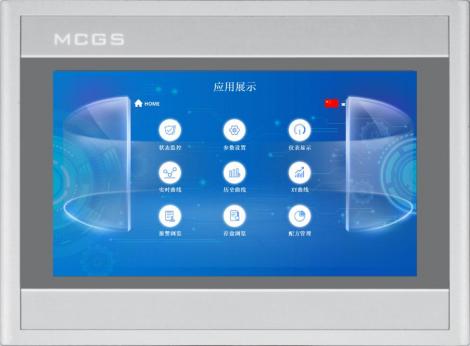
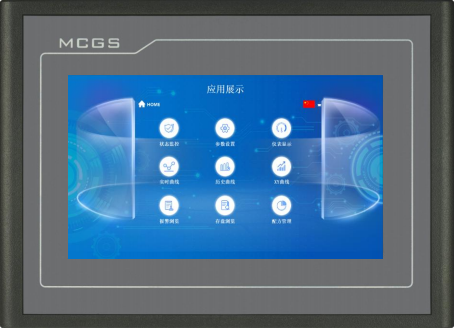
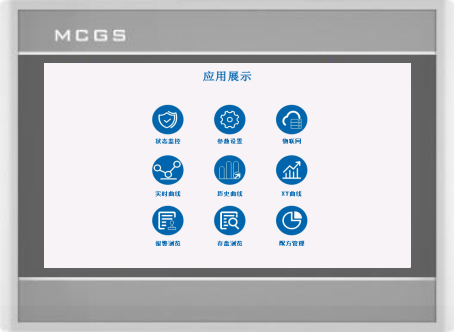
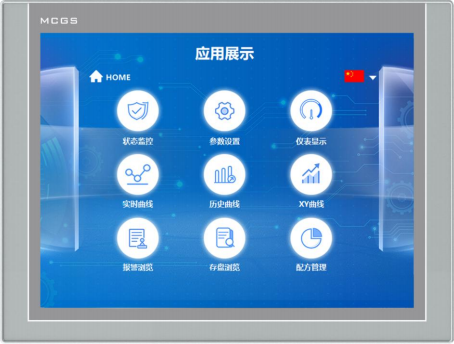
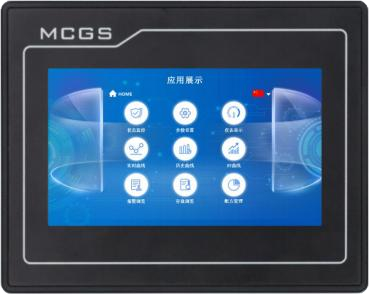
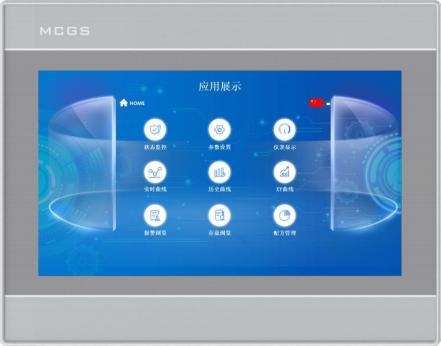
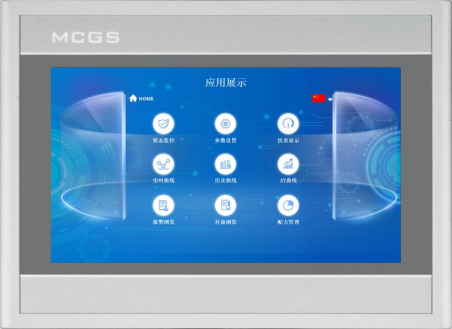
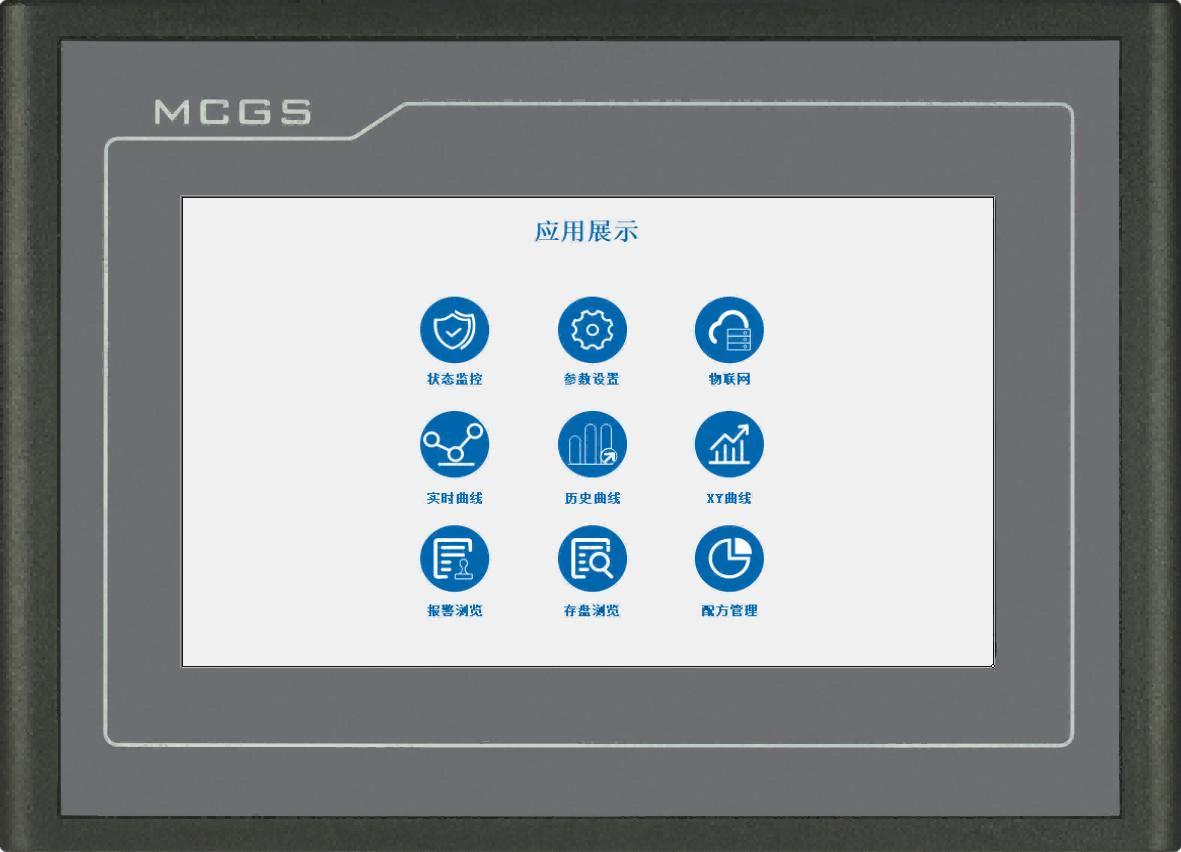
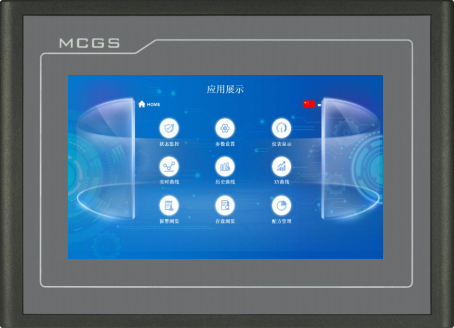
As a sophisticated smart touch terminal released by Kunlun Tech, the G-series TPC is well-equipped to accommodate varied application requirements from different users.
Item No :
TPC7071GnOrder(MOQ) :
50Payment :
Paypal\TT\Western UnionProduct Origin :
Guangdong, ChinaWeight :
1KGFeatured with innovative technology and leading industry advantages, our G series touchscreen is manufactured with superior quality and trustworthy performance. It adopts high-end and elegant appearance design, featuring slim profile and lightweight structure for easy installation and neat layout. This series is configured with optional 256MB / 1GB RAM and 8GB internal storage, delivering stable running performance and ample data storage space. Furthermore, it supports full user customization service, enabling flexible function and configuration adjustment to satisfy diversified application requirements in various industrial fields.
Product Specifications
|
Classification |
Item |
TPC7071Gn |
|
Product Features
|
Liquid Crystal Screen |
7" TFT |
|
Backlight Type |
LED |
|
|
Display Color |
262K |
|
|
Resolution (Point Distinguish Rate) |
1024×600 |
|
|
Display Brightness |
350cd/㎡ |
|
|
Touch Screen Type |
Four-wire Resistor |
|
|
Input Voltage |
24±20% VDC |
|
|
Power Isolation |
Built-in |
|
|
Rated Power |
6W |
|
|
Processor |
Cortex-A53 Quad-core 1GHz |
|
|
RAM |
1GB |
|
|
System Storage |
8GB |
|
|
Total Storage Space |
8GB |
|
|
Hardware Clock |
Built-in |
|
|
Configuration Software |
McgsPro 3.3.6.6354 SP1.3 Versions 1 and 2 |
|
|
External Interface
|
Serial Interface |
Way 1: COM1(232) COM2(485) COM3(485) COM4(232)Way 2: COM1(232) COM4(232) COM9(422) |
|
USB Interface |
1×Host |
|
|
Ethernet Port |
2 × 10/100M Adaptive |
|
|
Environmental Conditions
|
Operating Temperature |
0℃~50℃ |
|
Operating Humidity |
5%~90% (non-condensing) |
|
|
Storage Temperature |
-10℃~60℃ |
|
|
Storage Humidity |
5%~90% (non-condensing) |
|
|
Product Specifications
|
Casing Material |
Engineering Plastics |
|
Casing Color |
Silver |
|
|
External Dimensions |
203mm×149mm |
|
|
Rack Opening |
192mm×138mm |
|
|
Display Size |
155mm×88mm |
|
|
Certification & Compliance
|
Product Certification |
Conform to CE/FCC Certification Standards |
|
Protection Level |
IP65 (Front Panel) |
|
|
Electromagnetic Compatibility |
Industrial Level 3 |
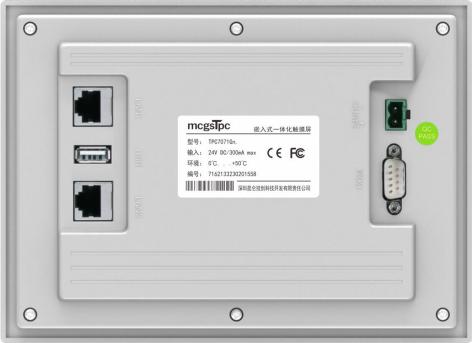
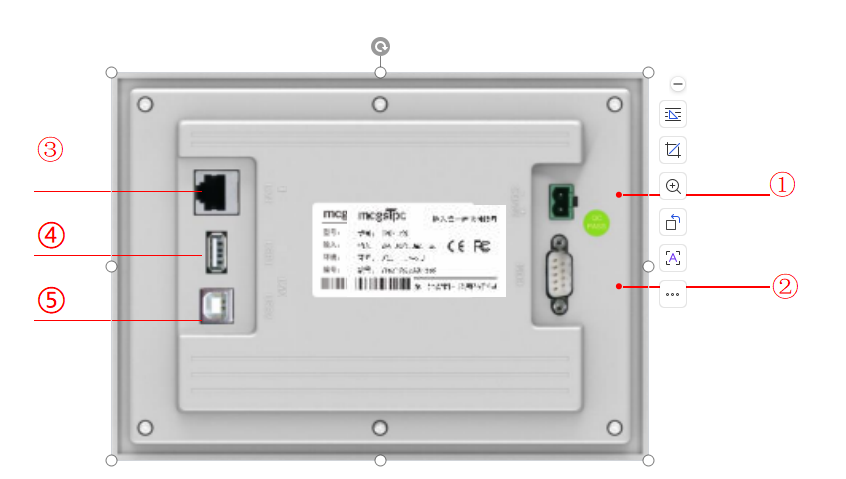
Interface Description
|
① |
Electricity source |
|
|
- |
1 |
0V |
|
+ |
2 |
DC24V |
||||
|
② |
Serial port |
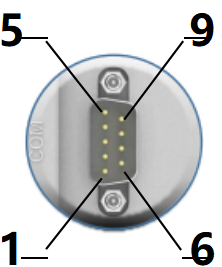
|
COM1 |
2 |
RS232 RXD |
|
|
3 |
RS232 TXD |
|||||
|
5 |
GND |
|||||
|
COM2 |
7 |
RS485+ |
||||
|
8 |
RS485- |
|||||
|
COM3 |
4 |
RS485+ |
||||
|
9 |
RS485- |
|||||
|
COM4 |
1 |
RS232 RXD |
||||
|
6 |
RS232 TXD |
|||||
|
5 |
GND |
|||||
|
COM9 |
7 |
RXD+ |
||||
|
8 |
RXD- |
|||||
|
4 |
TXD+ |
|||||
|
9 |
TXD- |
|||||
|
Note: com9 cannot be used simultaneously with com2 or com3. |
||||||
|
③ |
Net mouth |
A 10M/100M adaptive Ethernet port allows for uploading or downloading projects, upgrading the operating environment (the screen's operating environment needs to be Pro 3.3.2 or higher ), and communication with other devices. |
||||
|
④ |
||||||
|
⑤ |
USB main port |
USB 2.0 supports updating the touchscreen operating environment, projects, and system via USB flash drive, as well as data import and export functions. |
||||
Product Installation
l Product Dimensions
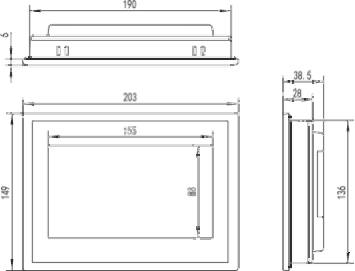
External dimensions
l Installation method
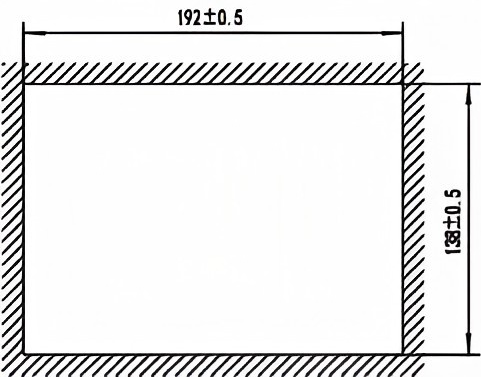
Opening size
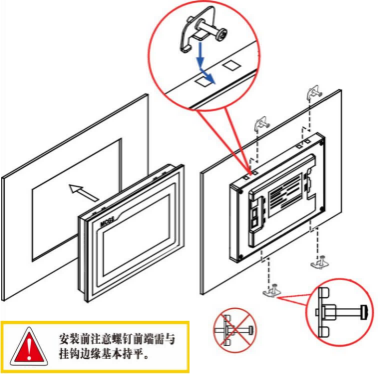
Hook installation
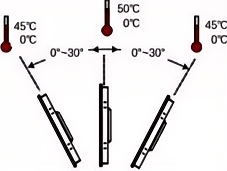
Installation angle
Product Maintenance
1.5.1 Replacement battery
Battery location: TPC On the circuit board inside the product
Battery specifications: CR2032 3V lithium batteries
During installation, please be careful to avoid short-circuiting the positive and negative terminals of the battery.
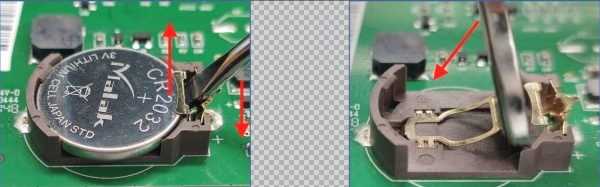
Remove battery Install battery
1.5.2 Touch calibration
Enter TPC In the system settings interface, press and hold on a blank area. 3 The touch calibration process will begin in seconds.
TPC Calibration: Use a stylus or finger to lightly press and hold the center point of the crosshair cursor. When the cursor moves to the next point, lift it. Repeat this action until the message "New calibration settings have been measured" appears. Click the "Confirm Calibration" button to save and exit the calibration program.
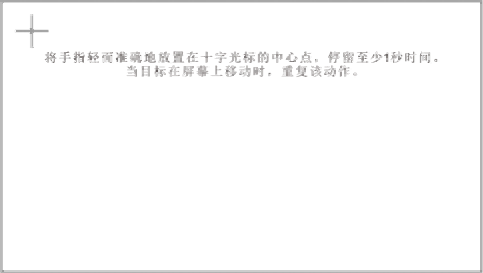
Place your finger lightly and accurately on the center of the crosshair cursor and hold it for at least one second as the target moves across the screen. Repeat this action.
1.5.3 Three-proof film
Give TPC Applying a protective film can effectively prevent dust , oil, and other contaminants generated during production from affecting the skin. TPC is susceptible to corrosion, therefore, if necessary, a protective membrane can be used to protect TPC. To protect it. This article takes... 1271Gn We will use this as an example for explanation; other models will be discussed later. TPC The steps for applying the screen protector are similar .
l Tools needed: TPC Includes a three-proof film (available for purchase from screen suppliers), dustproof cloth, anti-static environmentally friendly cleaning agent, and roller.
l Operating steps:
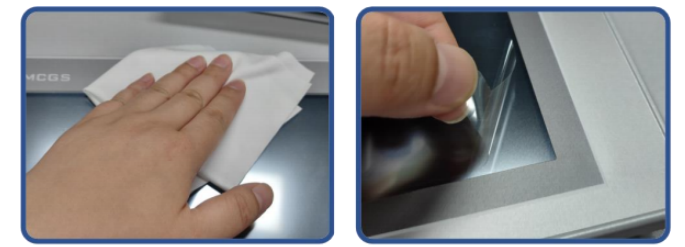
1) Clean the screen. Use a dust cloth to wipe away dirt from the front panel to prevent bubbles when applying the screen protector. If the TPC surface is heavily contaminated, use a cleaning agent to help clean contaminants in the crevices around the edges.
2) Remove the factory-installed PET protective film and clean any residue to prevent bubbles from forming during application.
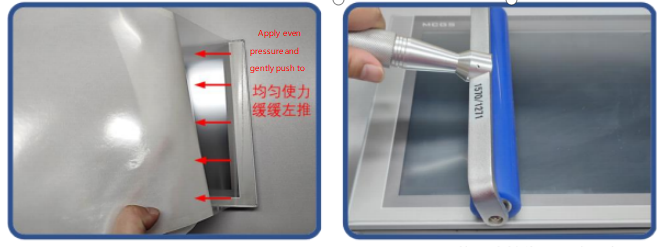
3) Peel off a corner of the backing film on the right side. Align the right side of the film with the right side of the TPC. With your left hand, slowly peel off the backing film, and with your right hand, apply even pressure to gently push the film onto the screen from right to left
4) After applying the film, use a roller to press the adhesive backing firmly to prevent air bubbles.
l Precautions:
1) The factory-installed protective film must be removed before applying the three-proof film. PET Protective film
2) The three-proof film is a consumable. If the edges are found to be peeling or bulging , a new film needs to be applied.
3) When replacing the protective film, pry it up from the lower right corner of the front panel, being careful not to scratch the sealing film.
2 Project Download
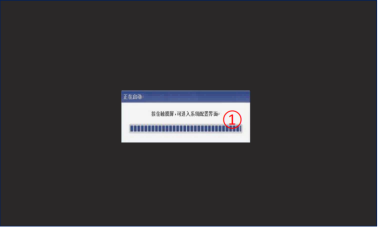
Step 1: Use 24V DC power supply TPC After powering on and starting up, a "Starting up" progress bar will appear on the screen. At this point, click... TPC①, You will be taken to the startup configuration interface. If no action is taken, you will be taken to the project running interface automatically .
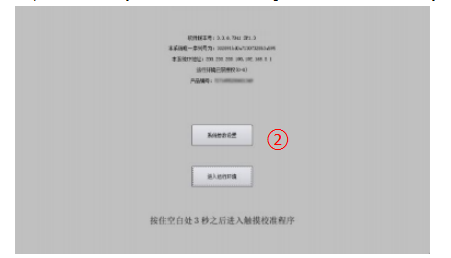
Step 2: Click the System Parameter Settings button ②. Enter TPC System settings interface.
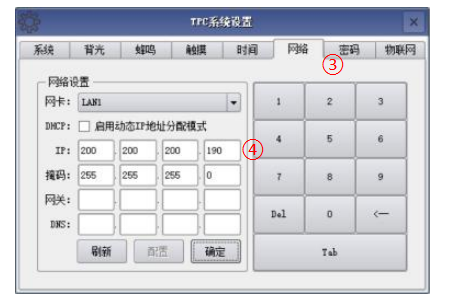
Step 3: Select the Network Settings tab ③, and configure... TPC IP Address 4, TPC default I P Address is 200.200.200.190 .
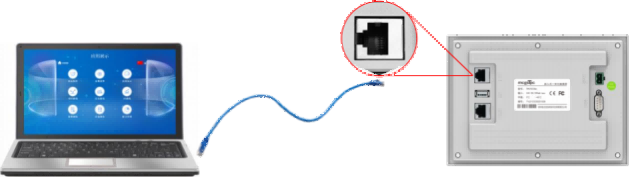
Step 4: Connect the computer and... TPC, and the computer IP With the connected TPC LAN port IP Set them to the same network segment.
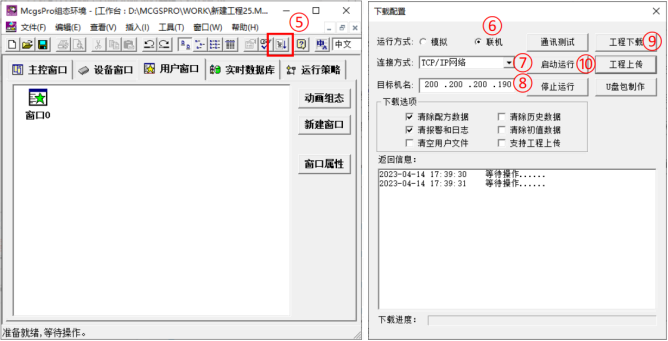
Step 5: Use MCGS Pro Open TPC Project, click to download project ⑤, Open the download configuration properties page and select "Online" as the run mode . Select the connection method "TCP/IP" "Network"⑦ Enter the target machine name TPC of IP Address ⑧ , Click "Download Project" (⑨). After the download is successful, click "Start & Run" (⑩) or... TPC The "Enter Runtime Environment" button on the interface runs the screen-side project.

Leave A Message
Scan to Wechat :

Scan to WhatsApp :