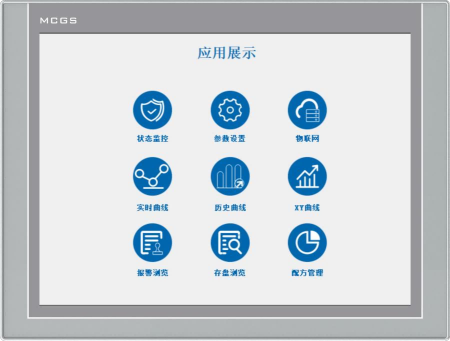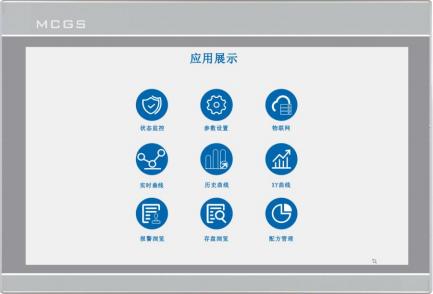
Leave A Message
If you are interested in our products and want to know more details,please leave a message here,we will reply you as soon as we can.

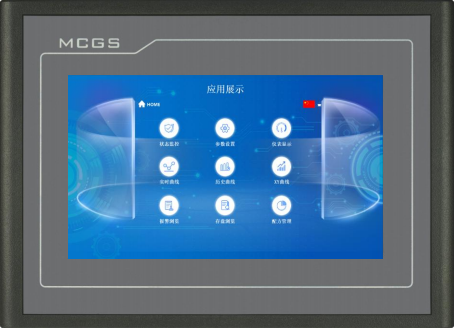
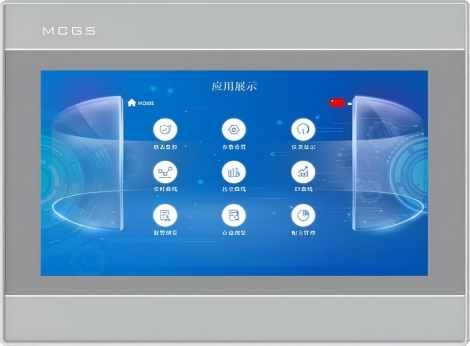
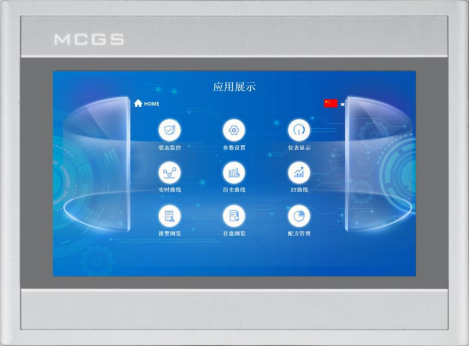
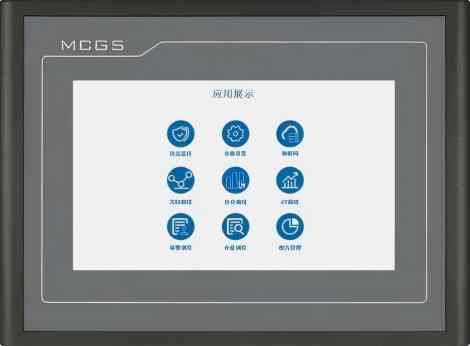
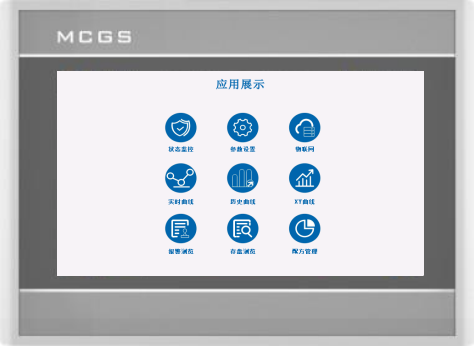
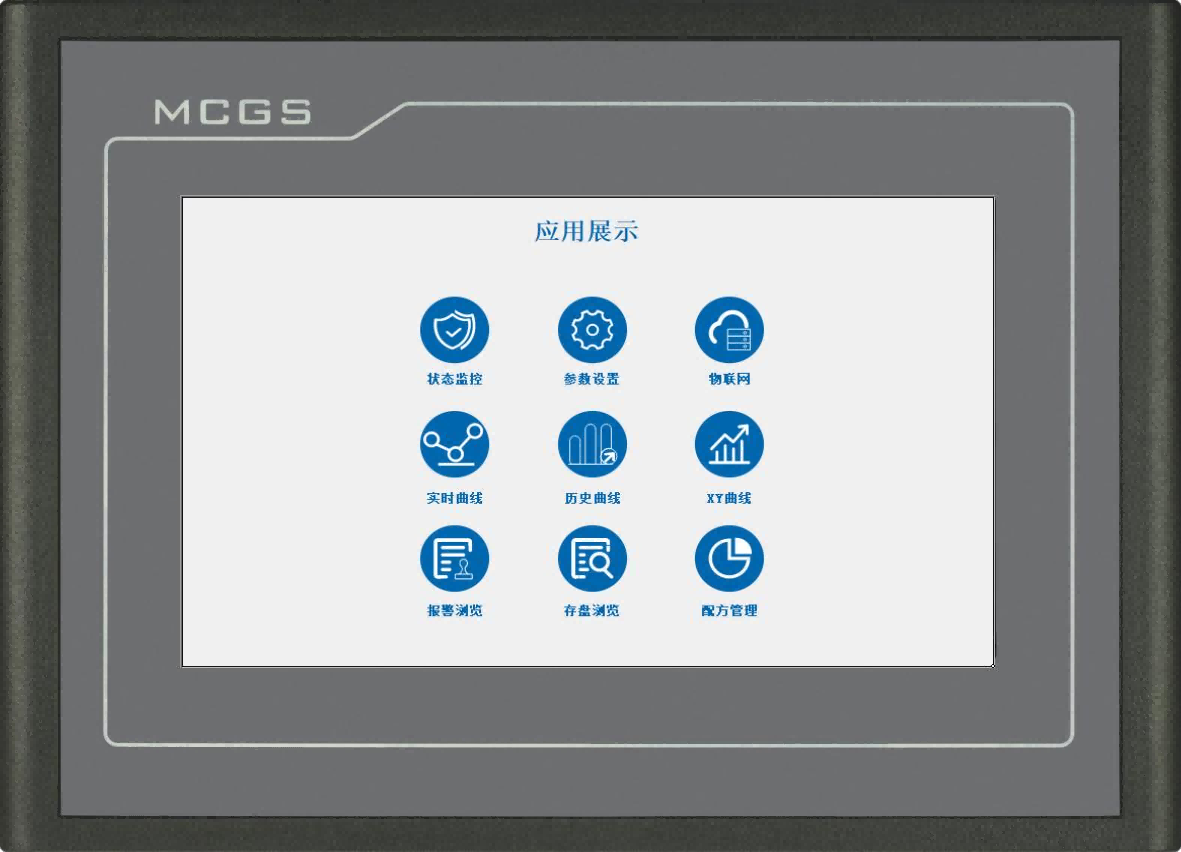
MCGS TPC7032Tt is a compact 7‑inch embedded industrial HMI touch panel with 800×480 TFT display, built‑in isolated RS232/RS485 serial port and 10/100Mbps Ethernet, Cortex‑A7 800MHz processor, compatible with McgsPro configuration software, IP65 front panel for small‑size industrial automation control cabinets.
Item No :
TPC7032TtOrder(MOQ) :
50Payment :
Paypal\TT\Western UnionProduct Origin :
Guangdong, ChinaWeight :
2KGThe MCGS TPC7032Tt is a mid‑to‑high‑end compact embedded all‑in‑one HMI human‑machine interface for industrial automation. Equipped with a 7‑inch TFT LCD and 4‑wire resistive touch screen, powered by Cortex‑A7 multi‑core 800MHz CPU with 128MB RAM and 128MB flash storage.
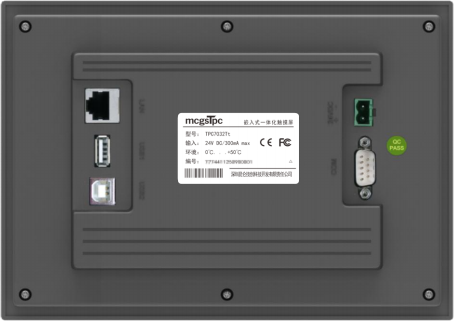
This model integrates rich communication resources: hardware‑isolated COM1(RS232), COM2(RS485), plus 10/100Mbps adaptive Ethernet port, dual USB interfaces (USB Host & USB‑Slave Type‑B). Multiple download options: TCP/IP network download, USB flash disk download, USB cable download, fully compatible with McgsPro configuration software (V3.3.2 or above). Built‑in power isolation and serial‑port isolation deliver strong anti‑interference performance for noisy factory environment. Dull‑grey engineering plastic housing with IP65 front‑panel dust‑proof & splash‑proof rating, CE & FCC certified for global industrial equipment deployment.
Product Specifications
|
Classification |
Item |
TPC7032Tt |
|
Product features |
LCD |
7" TFT |
|
Backlight type |
LED |
|
|
Display color |
262K |
|
|
Resolution ratio |
800×480 |
|
|
Display brightness |
250cd/m2 |
|
|
Touch screen |
Fourth-order resistive |
|
|
Input voltage |
24±20%VDC |
|
|
Power isolation |
Built-in |
|
|
Power rating |
7W |
|
|
Processor |
Cortex-A7 multi-core, 800 MHz |
|
|
Internal storage |
128MB |
|
|
Flash Memory |
128MB |
|
|
Data storage |
128MB |
|
|
Hardware clock |
Built-in |
|
|
Configuration software ware |
McgsPro |
|
|
Peripheral interface |
Serial interface |
COM1 (232),COM2 (485) |
|
Serial port isolation |
Built-in |
|
|
USB port |
1 ×Host,1 ×Slave |
|
|
Ethernet port |
1 × 10/100 Mbps Adaptive |
|
|
Ambient condition |
Working temperature |
0℃~45℃ |
|
Working humidity |
5%–90% (no condensation) |
|
|
Storage temperature |
-10℃~60℃ |
|
|
Storage humidity |
5%–90% (no condensation) |
|
|
Size of product |
Case material |
Engineering plastic |
|
Shell color |
Dull grey |
|
|
External dimensions |
226mm×163mm |
|
|
Cabinet perforation |
215mm×152mm |
|
|
Attestation |
Product certification |
Complies with CE/FCC certification standards |
|
Levels of protection |
IP65 (front panel) |
|
|
Electromagnetic compatibility |
Industrial Grade 3 |
Interface Description
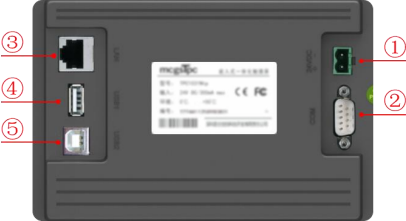
|
① |
Electricity source |
|
|
- |
1 |
0V |
|
+ |
2 |
DC24V |
||||
|
② |
|
|
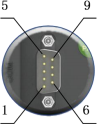
COM1 |
2 |
RS232 RXD |
|
|
3 |
RS232 TXD |
|||||
|
5 |
GND |
|||||
|
COM2 |
7 |
RS485+ |
||||
|
8 |
RS485- |
|||||
|
/ |
||||||
|
③ |
Internet accesses |
The 10M/100M adaptive network port supports uploading or downloading engineering files, upgrading the operating
environment (the operating environment for the display requires Pro 3.3.2 or later), and communicating with other devices
|
||||
|
④ |
USB 1 Main Port |
USB2.0 supports updating the touchscreen operating environment,engineering files,and system software via a USB flash drive,as well as enabling data import and export
functions.
|
||||
|
⑤
|
USB 2.0 Port |
USB male port(TypeB),enabling upload or download of engineering files.
|
||||
Product Installation
l Product Dimensions
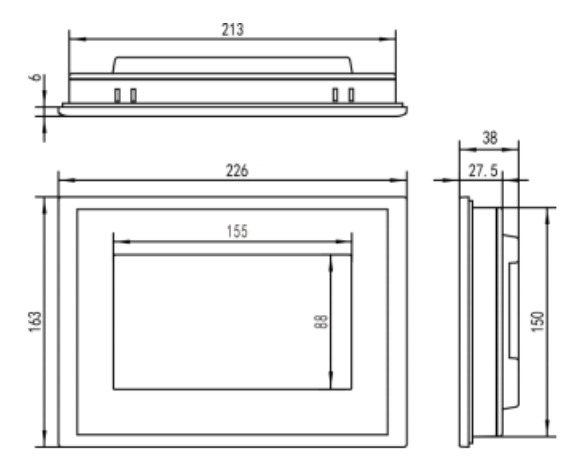
External dimensions
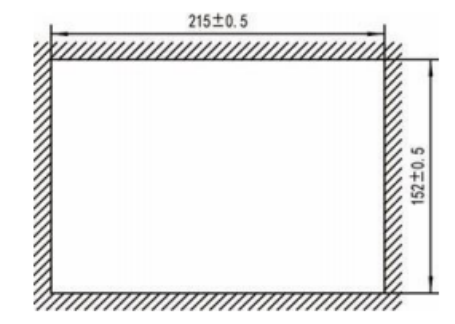
Opening size
l Installation method
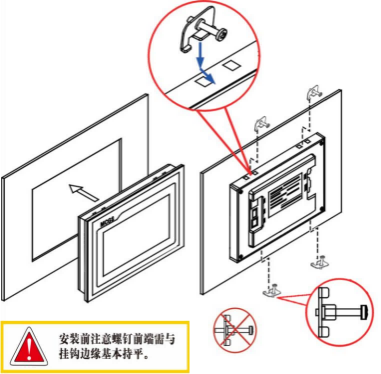
Note before installation: The front end of the screws must be basically flush with the hanger edge.
Hook installation
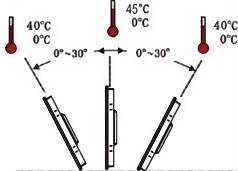
Installation angle
Product Maintenance
Battery Location: On the circuit board inside the TPC product
Battery Specification: CR2032 3V Lithium Battery
Battery Removal: Remove the securing adhesive above the battery, gently pull the positive terminal clip, and the battery will pop out automatically.
Battery Installation: First place the battery into the positive terminal clip, then gently press the other end down until it fits under the plastic clip. Verify that the battery is properly seated in both plastic clips and the metal positive terminal clip.
1.5.1 Replacement battery
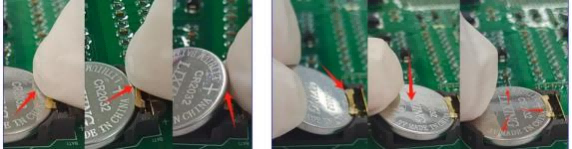
Remove battery Install battery
1.5.2 Touch calibration
Enter TPC In the system settings interface, press and hold on a blank area. 3 The touch calibration process will begin in seconds.
TPC Calibration: Use a stylus or finger to lightly press and hold the center point of the crosshair cursor. When the cursor moves to the next point, lift it.
Repeat this action until the message "New calibration settings have been measured" appears.
Click the "Confirm Calibration" button to save and exit the calibration program.
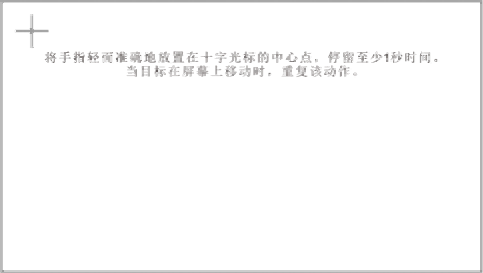
Place your finger lightly and accurately on the center of the crosshair cursor and hold it for at least one second as the target moves across the screen. Repeat this action.
1.5.3 Three-proof film
Applying a triple protection film to the TPC can effectively prevent contamination and corrosion caused by dust, oil stains, and other substances generated during production. Therefore, if necessary, the TPC can be protected with a triple protection film. This section takes the 1271Gn model as an example; the film application steps for other TPC models are similar.
l Preparation Tools: Matched triple protection film for TPC (available through the TPC's purchase channel), dust-free cloth, anti-static environmentally friendly cleaner, and roller.
l Operating steps:
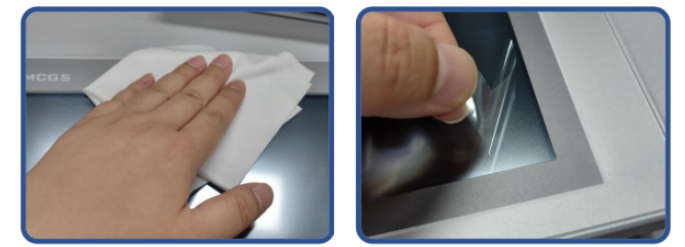
1) Clean the screen. Use a dust cloth to wipe away dirt from the front panel to prevent bubbles when applying the screen protector. If the TPC surface is heavily contaminated, use a cleaning agent to help clean contaminants in the crevices around the edges.
2) Remove the factory-installed PET protective film and clean any residue to prevent bubbles from forming during application.
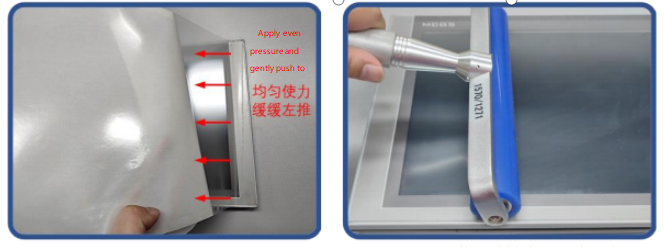
3) Peel off a corner of the backing film on the right side. Align the right side of the film with the right side of the TPC. With your left hand, slowly peel off the backing film, and with your right hand, apply even pressure to gently push the film onto the screen from right to left
4) After applying the film, use a roller to press the adhesive backing firmly to prevent air bubbles.
l Precautions:
1)Before applying the Triple Protection Film, the factory-installed PET protective film must be peeled off.
2)The Triple Protection Film is a consumable. If edge lifting or bubbling is detected, it should be replaced with a new one.
3)When replacing the Triple Protection Film, peel it up from the bottom right corner of the front panel. Be
careful not to scratch the sealed film.
2 Project Download
 Step 1: Supply power to the TPC using a 24 V DC power supply. After powering on, the screen will display the message: "Press and hold the touch screen to enter the system configuration interface," accompanied by a progress bar. At this point, tap the TPC ① to enter the startup configuration interface; if no action is taken, the system will automatically enter the engineering operation interface.
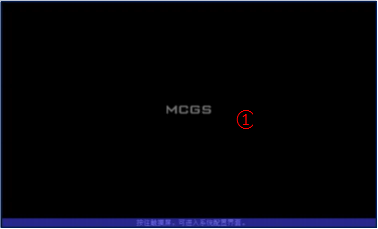
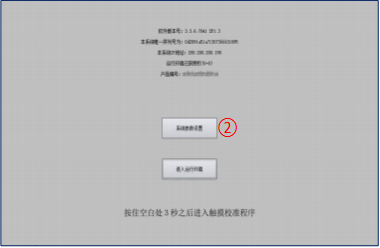
Step 2: Click the "System Parameter Settings" button ② to enter the TPC system settings interface.
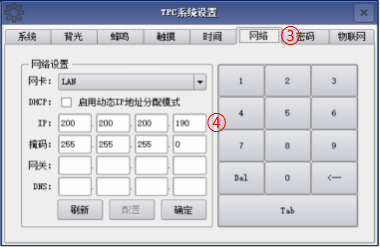
 Step 3: Select the Network Settings tab ③, then configure the TPC IP address ④; the default TPC IP address is 200.200.200.190.
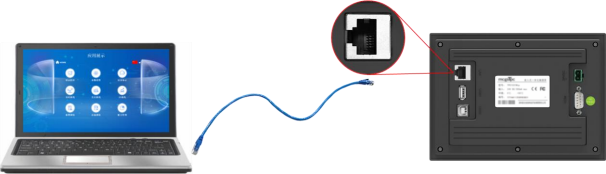
Step 4: Connect the computer to the TPC using a network cable, and set the computer's IP address to the same subnet as the IP address of the TPC LAN port to which it is connected.
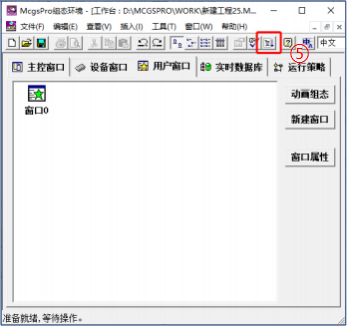
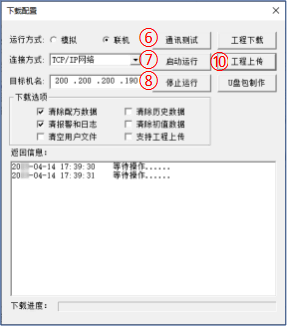
Step 5: Open the TPC project using McgsPro. Click "Download Project⑤", open the downloaded configuration properties page, select the "Online" operation mode⑥, choose the "TCP/IP Network" connection type⑦, enter the IP address of the target machine (named TPC)⑧, and click "Download Project⑨". Once the download is successful, as indicated by the prompt, click "Start" ⑩ or the " Enter Runtime Environment" button on the TPC interface to run the desktop project.

Leave A Message
Scan to Wechat :

Scan to WhatsApp :